
Save Loading Plans
This makes it easy for customers to continue a conversation with your team, request quotes, or collaborate internally without repeating the entire calculation.
What Is the Save Loading Plans Feature?
Section titled “What Is the Save Loading Plans Feature?”Save Loading Plans allows an end user to:
- Generate a shareable URL of their calculation results
- Save the selected items and unit configuration
- Return to the same loading plan later
- Provide key contact details to your business
The shared link opens the calculator pre-loaded with the exact configuration the user originally created.
This provides continuity between the user’s initial exploration and your sales or operations workflow.
Why This Feature Is Valuable
Section titled “Why This Feature Is Valuable”For your business
Section titled “For your business”- Great for internal quoting, validation, or operational planning
- Improves conversion by letting users “save progress” and return later
- Works well in multistep funnels, internal apps, and email-based workflows
For your customers
Section titled “For your customers”- They don’t need to repeat the calculation
- They can send their loading plan to partners or family members
- They can revisit the exact configuration later
- It becomes easier to compare units and configurations
How to Enable Save Loading Plans
Section titled “How to Enable Save Loading Plans”You can activate this feature directly in the Calcumate Dashboard.
- Log into your Calcumate Dashboard
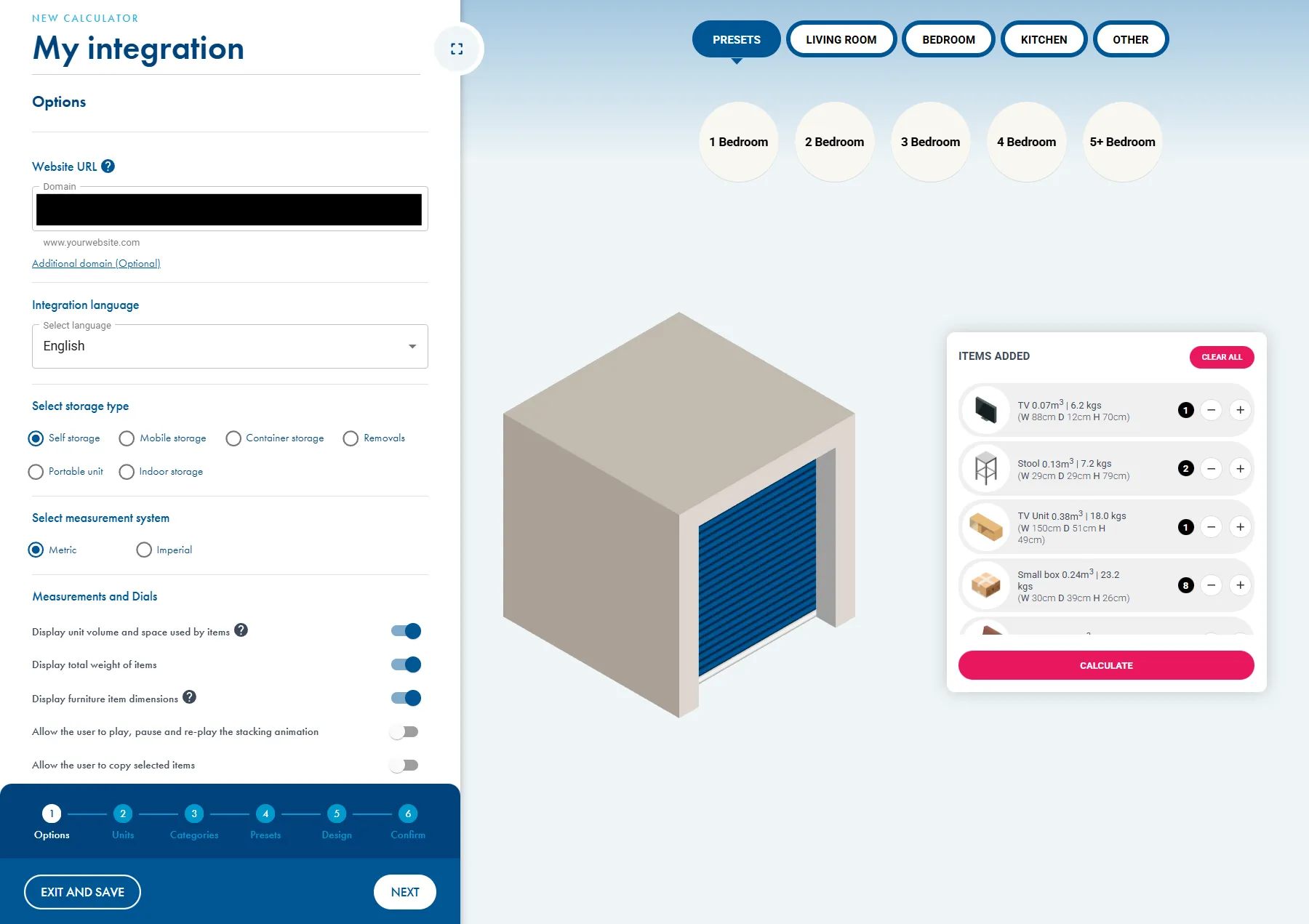
- Navigate to your calculator configuration
Step 1: Go to the calculator configuration
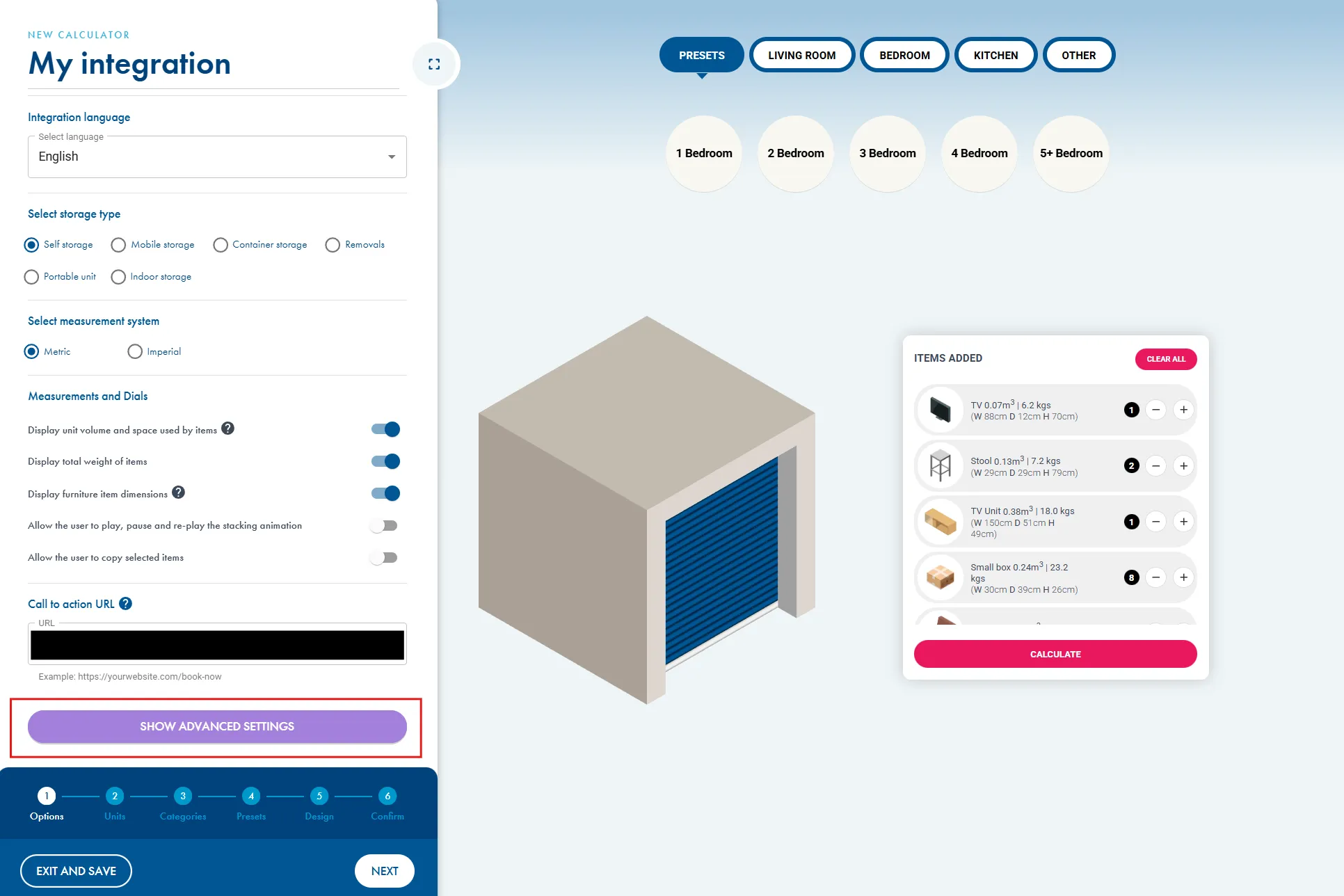
Step 2: Go to the Advanced Settings
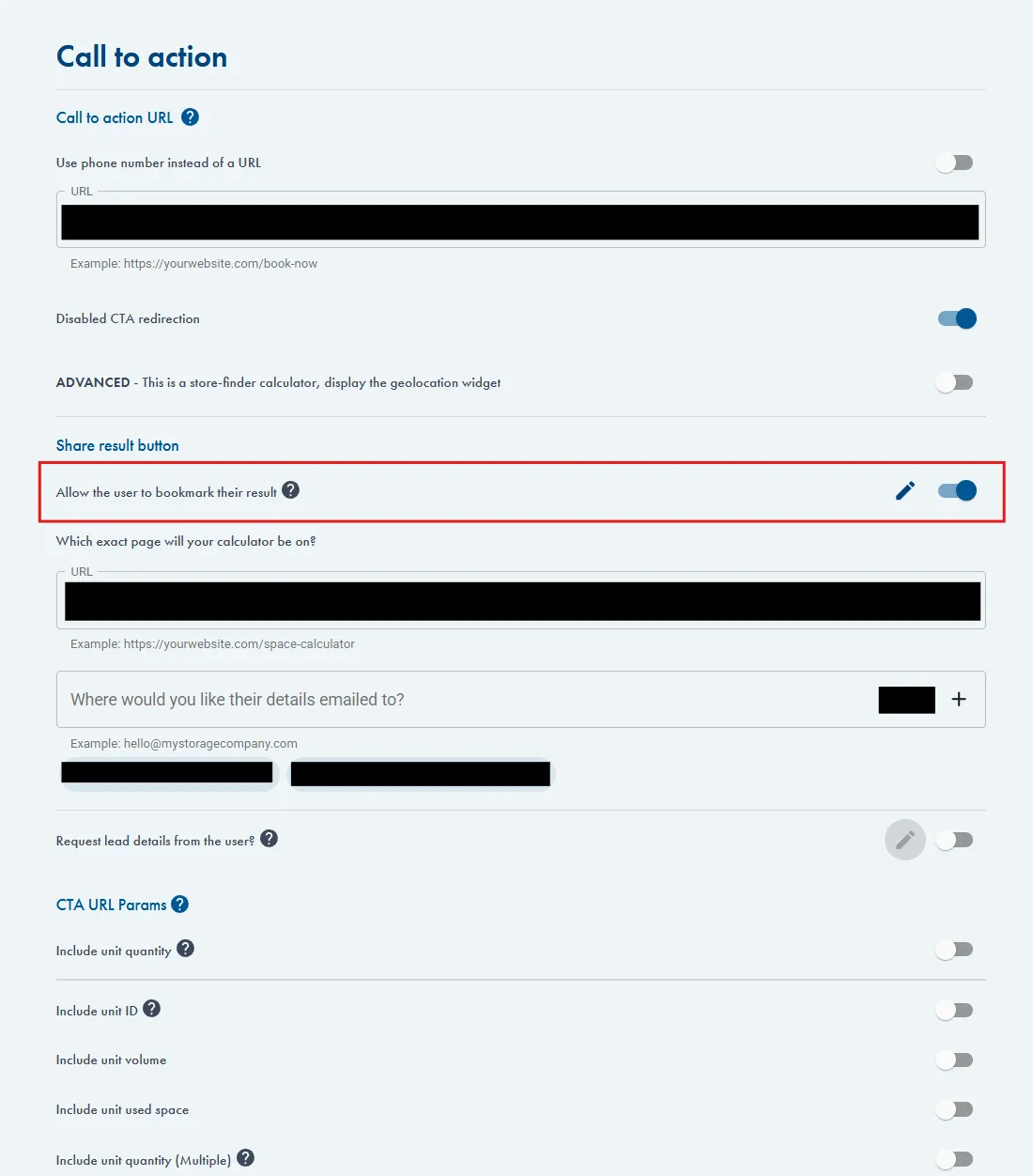
- Look for Allow the user to bookmark their result in the features list
-
Toggle Allow the user to bookmark their result
-
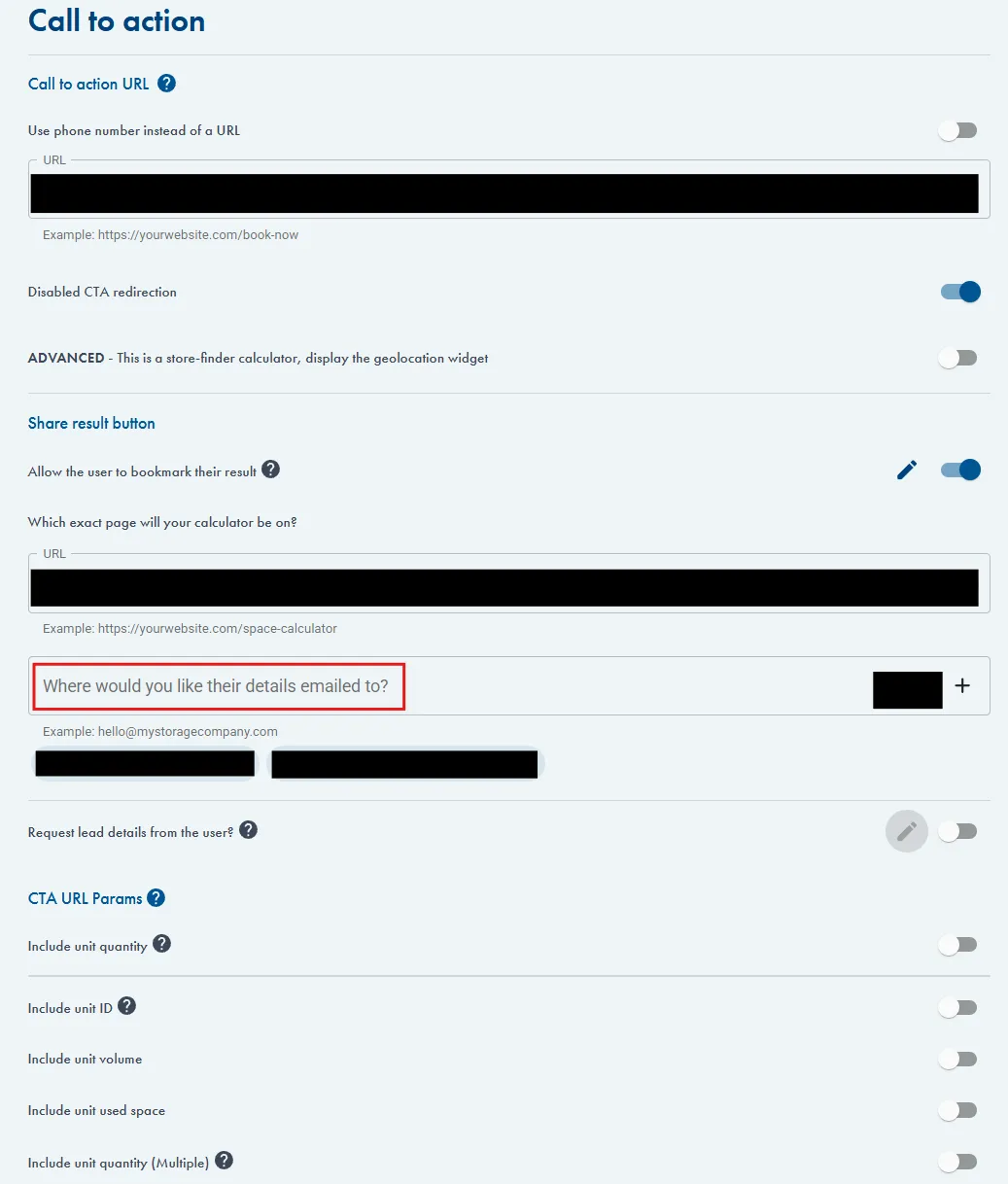
Configure the notification email(s) you want to receive saved plans
- These emails must be added in the Where would you like their details emailed to section
Once enabled, the “Save Loading Plan” action automatically appears in your calculator after a calculation is completed.
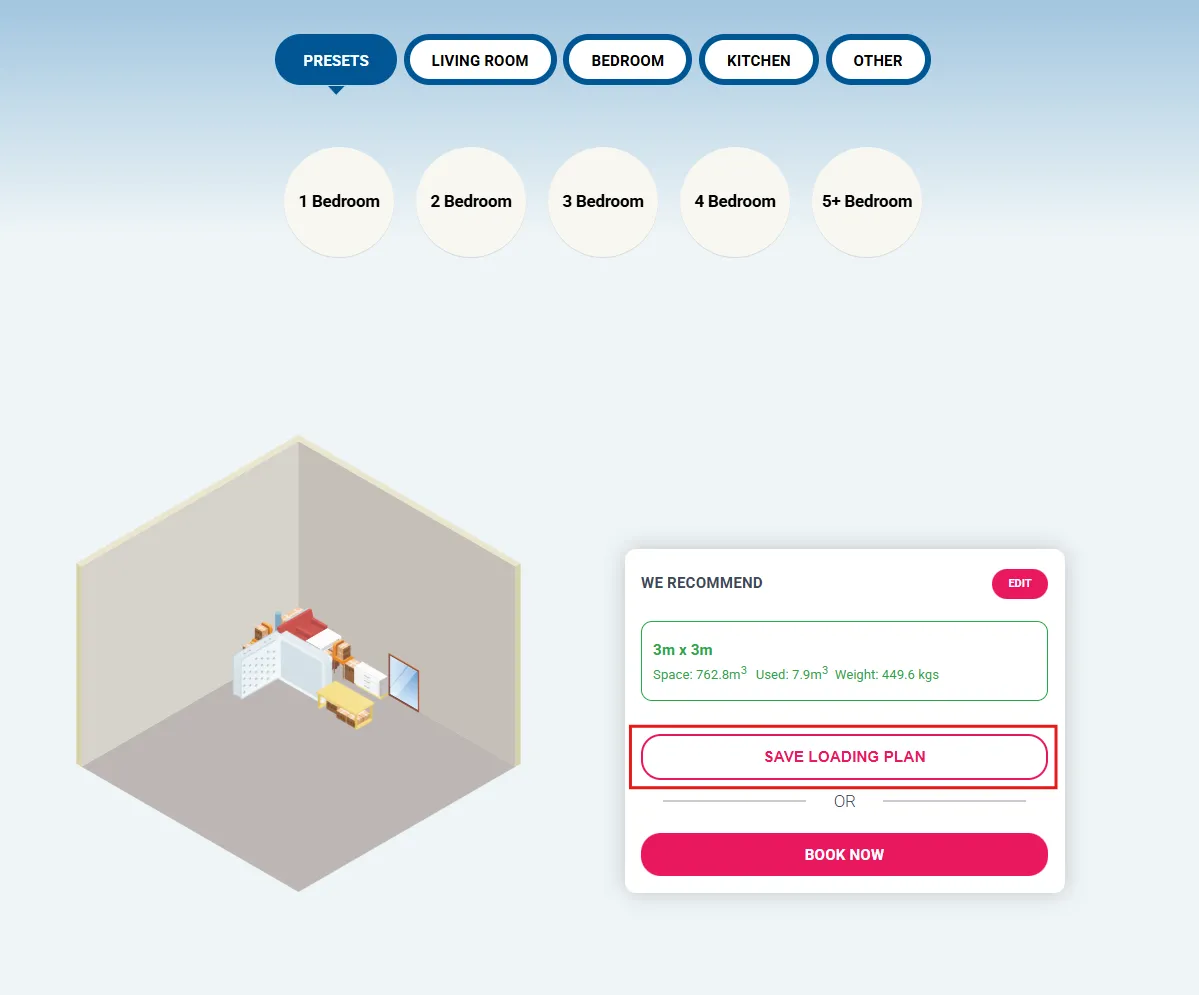
How the Save & Share Flow Works (End User Experience)
Section titled “How the Save & Share Flow Works (End User Experience)”After completing an optimisation, your customer sees a Save Loading Plan button.
Step-by-step flow
Section titled “Step-by-step flow”- User completes a calculation
The calculator produces the loading plan visualization and selected product list. - User clicks “Save Loading Plan”
A small form opens requesting basic contact details (name, email, phone—depending on your configuration). - User submits the form
Calcumate:- Generates a unique, shareable URL
- Sends this URL to the user’s clipboard (copy prompt)
- Sends the same URL to the email(s) you configured in your Dashboard
- User shares the link
Anyone with the URL can open the loading plan on the same calculator page. - Your team receives the saved plan
The email includes:- Customer details
- Shared link
- Context of the calculation (unit, items, etc.)
Note: The link works on any calculator because it stores all relevant data, but it is intended to be used on the calculator where the optimisation originally happened.
Example of a Shared Link
Section titled “Example of a Shared Link”A typical shared URL looks like:
https://yourcalculator.com/?planId=abc123xyzOpening the link loads the calculator pre-filled with the exact items and unit used by the user.
Frequently Asked Questions (FAQ)
Section titled “Frequently Asked Questions (FAQ)”Can users edit their loading plan after opening the shared link?
Section titled “Can users edit their loading plan after opening the shared link?”No. They can modify items or units, and run a new optimisation. But that will not be updated on the plan.
Does the link expire?
Section titled “Does the link expire?”Currently, save links do not expire.
Is personal information included in the shared URL?
Section titled “Is personal information included in the shared URL?”No. Personal details are only sent to your configured email(s) and are never stored in the URL.
Can we customise the form fields?
Section titled “Can we customise the form fields?”Field customisation is currently not supported for loading plans.
Can we use the shared link in internal tools?
Section titled “Can we use the shared link in internal tools?”Yes. Many clients embed these URLs in CRM notes, email threads, or quoting systems.
Troubleshooting
Section titled “Troubleshooting”The Save Loading Plan button does not appear
Section titled “The Save Loading Plan button does not appear”Check:
- Feature is enabled in the Dashboard
We are not receiving emails
Section titled “We are not receiving emails”Verify:
- Your notification emails are correctly added in Dashboard settings
- Emails are not being filtered by your mail provider
Best Practices
Section titled “Best Practices”- Add your team’s shared inbox to the notification list (e.g., sales@, operations@)
- Use shared URLs internally for quotes, cross-team reviews, or validation
If you need help enabling the feature or customising the workflow, contact our Support team.